

How To Install Ccloud Kodi Addon
cCloud TV is a video Kodi addon that lets you stream tons of live TV channels from the UK and US. You can stream channels from various networks like ABC, Sky, NBC, and many more. Along with TV channels, it also hosts on-demand movies, shows, and documentaries. Normally, you need to pay a monthly/yearly subscription to watch live TV channels online. With the cCloud TV addon, you can stream all the live TV channels for free. You can find TV channels under the 24/7 Channels menu.
ATTENTION: Before using Kodi, users must remember the fact that their IP and online activities are visible to the ISPs and Government while using Kodi. If you stream copyrighted content through Kodi, you will end up facing some serious legal issues. To avoid this, you must use a trusted VPN service to mask your internet activities from ISPs, hackers, Government, and many more. On the other hand, VPN also helps you to access geo-restricted media with ease. We recommend our users purchase and use NordVPN on their device.
Prerequisite:
cCloud TV is a third-party addon and you need to modify few settings on your Kodi app to download this addon.
Step 1: Open Kodi.
Step 2: Click the Settings icon.
Step 3: Select the System menu.
Step 4: Select Addons -> enable Unknown Sources.
Step 5: Click Yes.
How to Install cCloud TV Kodi Addon?
Even though cCloud TV is not an official addon, you can download this addon within two minutes. You can use the GitHub page to download the cCloud TV add-on on your Kodi.
Step 1: Open the web browser on your device and visit this GitHub page.

Step 2: Select the menu which named as plugin.video.ccloudtv-1.5.8.zip.
Step 3: On the next screen, select the Download button.
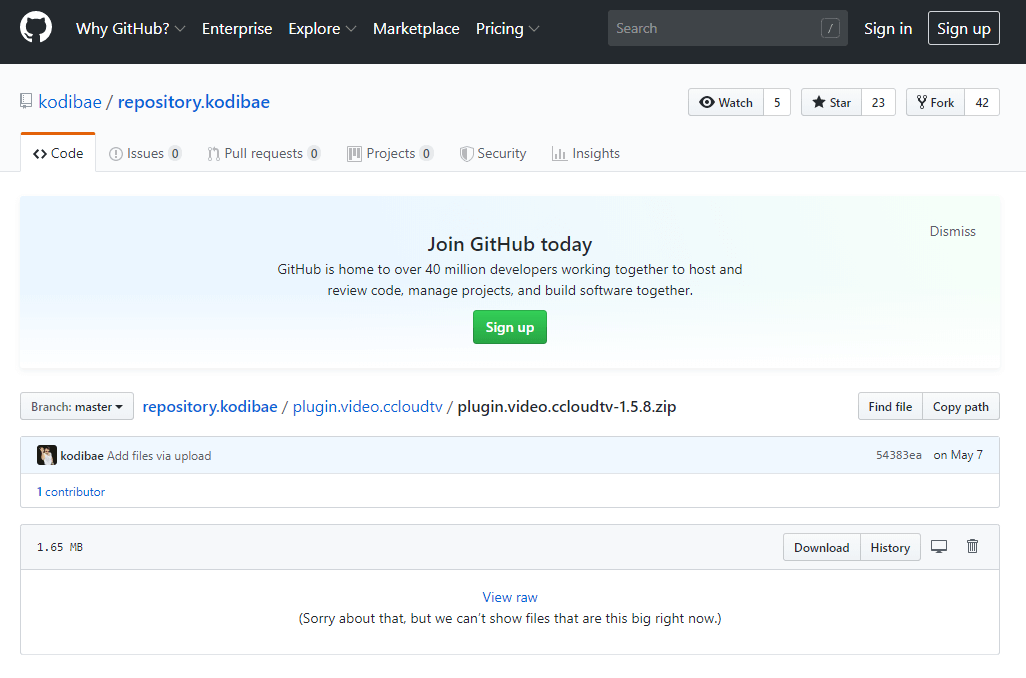
Step 4: By clicking the download button, the file will be downloaded in the Zip format.
Step 5: Now, open the Kodi app and select the Addons menu.

Step 6: Click the package installer icon located on the menu bar.

Step 7: Select the Install from Zip file menu.

Step 8: Search and select the zip file that you downloaded from the GitHub page.

Step 9: By clicking the zip file, the cCloud TV addon will be installed within a few minutes.
Step 10: Wait for cCloud TV Addon installed notification on the screen.
Step 11: Now, you can launch the addon by selecting Addons -> Video Addons -> cCloud TV.

Read also how to install Kodi on Amazon Firestick/Fire TV?
There are the steps required to install cCloud TV Addon on Kodi. Users can also access Kodil repo (http://www.lvtvv.com/repo/) to download this addon. Now, you will have access to stream best movies and shows from two countries.
If you want to share your queries or feedback, kindly leave a comment below.
How To Install Ccloud Kodi Addon
Source: https://www.lifepyar.com/how-to-install-ccloud-tv-kodi-addon/
Posted by: duncanhaime1998.blogspot.com
0 Response to "How To Install Ccloud Kodi Addon"
Post a Comment